The Dashboard
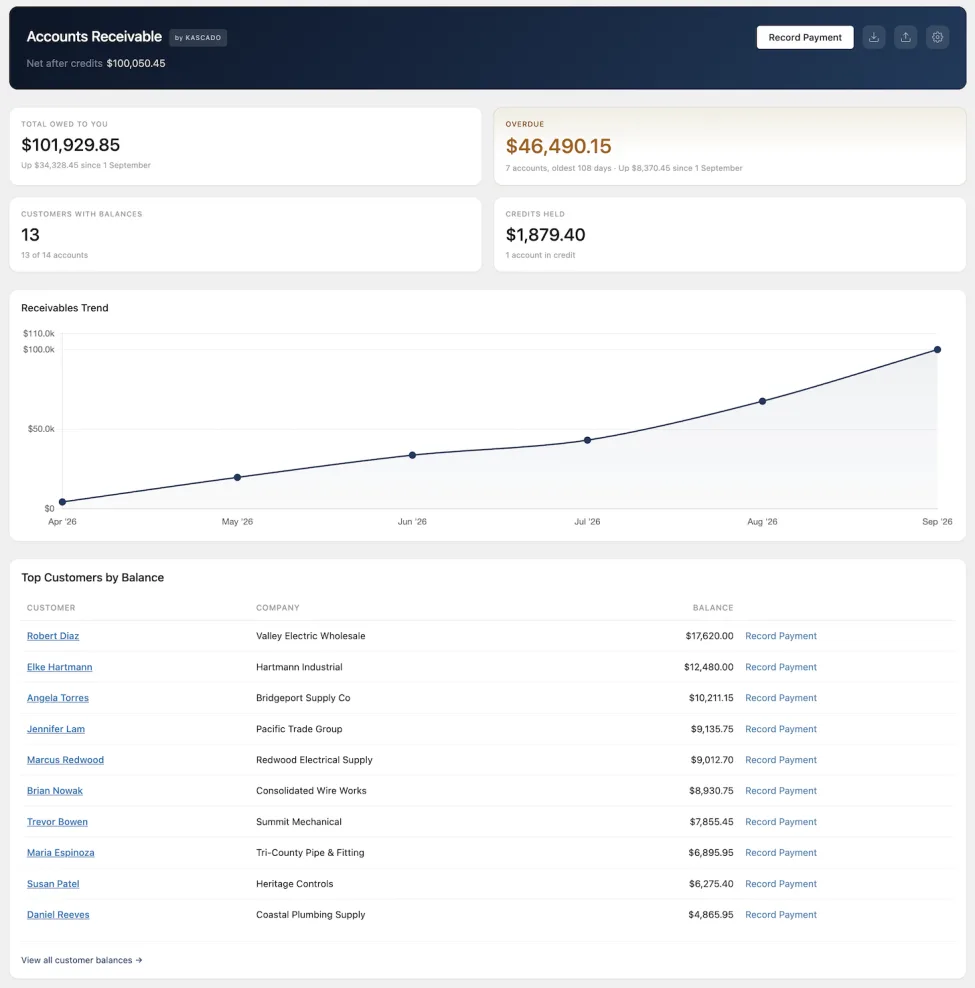
Every Accounts Receivable screen has a row of tabs across the top: Overview, the dashboard described here; Customers; Import; and Settings.
The Four Tiles
- Total Owed to You: the sum of every balance that is owed to you. Customers in credit are not netted against it.
- Overdue: the unpaid part of every charge whose due date has passed, with how many accounts it covers and how many days overdue the oldest one is.
- Customers with Balances: how many customers owe you something, out of all accounts carrying any balance, owing or in credit.
- Credits Held: the total you hold for customers who are in credit, with how many accounts that is.
Under Total Owed and Overdue, a line says how far each figure has moved since the first of the current month. When any credit is held, the header also shows Net after credits: total owed minus credits held.
Every figure is calculated from the ledger when the page loads. No balance is stored, so none can drift out of date.
Receivables Trend
A chart of the last six months. Each point is the net position at the end of that month: everything charged, minus every payment, credit, write-off and correction recorded up to then. Entries count in the month they are dated, not the month they were typed.
Top Customers by Balance
The ten customers with the largest balances, each with a Record Payment link. Click a name to open that customer’s account, or View all customer balances for the full list.
Customers and Accounts
Customer Balances
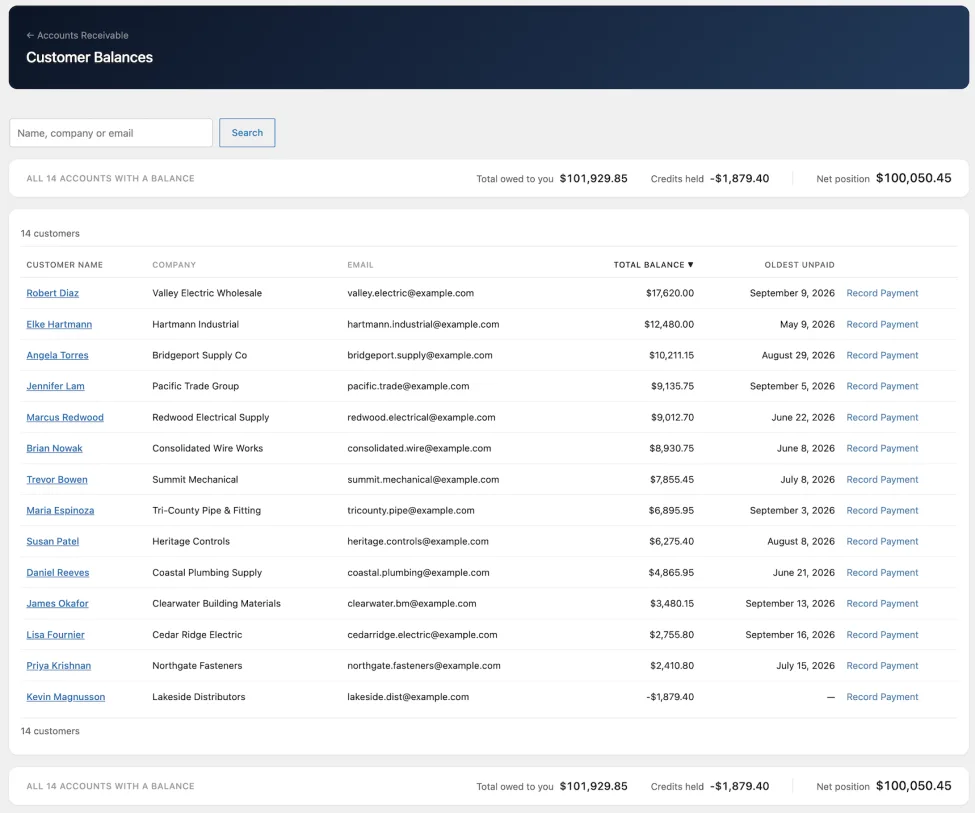
Every customer with a balance other than zero, owing or in credit, 50 to a page. A customer whose account is settled at exactly zero is not listed.
| Column | Shows |
|---|---|
| Customer Name | Display name, linking to the customer’s account. Sortable. |
| Company | The customer’s billing company |
| The customer’s account email | |
| Total Balance | Negative when the customer is in credit. Sortable; the default sort, largest first. |
| Oldest Unpaid | The date of the oldest invoice that still owes something. Sortable; customers with nothing unpaid sort last. |
The search box matches a customer’s display name, username, email or billing company. The list also shows the store-wide Total owed to you, Credits held and Net position.
A Customer’s Account
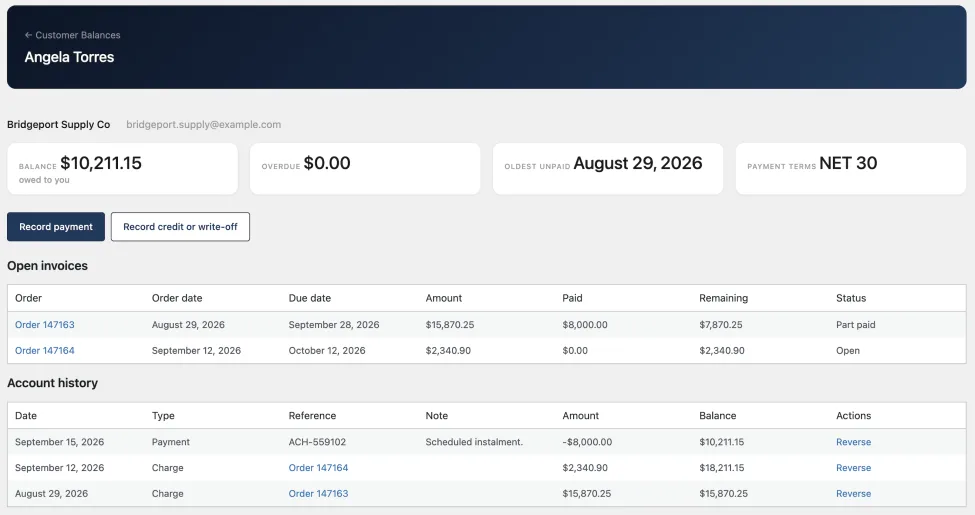
Each customer’s account screen shows four cards: Balance (owed to you, in credit, or Settled), Overdue, Oldest unpaid and Payment terms. Below them are buttons to record a payment, credit or write-off for this customer, then two tables:
- Open invoices: every charge that still owes something, with order, order date, due date, amount, paid, remaining and a status of Open, Part paid or Overdue N days.
- Account history: every entry, newest first by date, with its type, reference, note, amount and the running balance after it. Every figure on every screen can be traced back through this table.
History rows are labelled Charge, Payment, Credit, Refund credit, Write-off or Correction. Entries the plugin wrote in response to something else also carry a tag: Imported, Edited, Order cancelled or Refund deleted.
Recording Payments, Credits and Write-offs
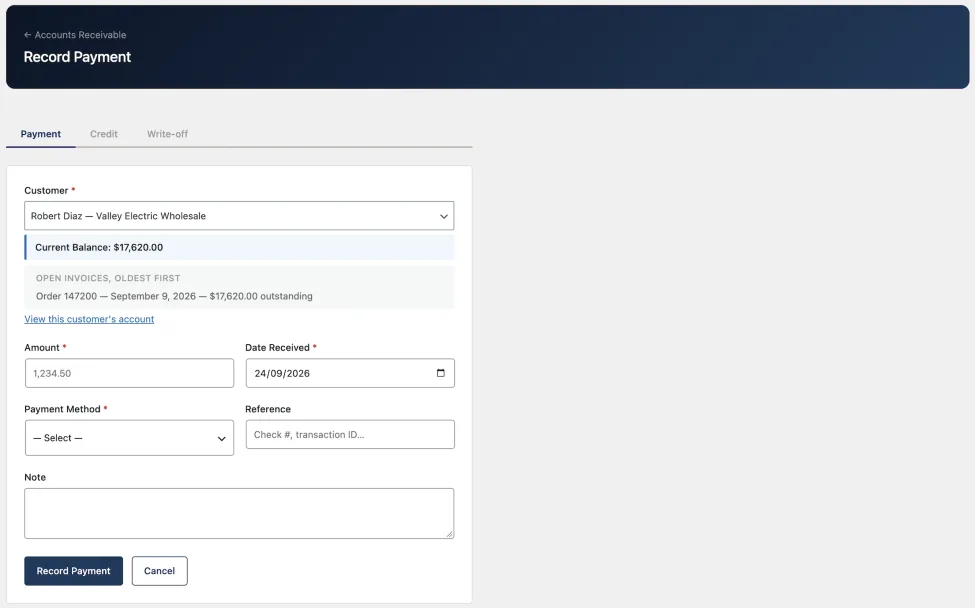
All three are recorded on the Record Payment screen. You can open it from the dashboard header, from the Record Payment link on a customer row, or from a customer’s account. The screen has three tabs: Payment, Credit and Write-off. Once you choose a customer, it shows their current balance and their open invoices, oldest first.
Payment
Money that has arrived. A payment belongs to the customer, not to an order, so a single cheque covering five invoices is recorded once.
- Amount and Date Received: the day the money actually arrived.
- Payment Method (required): Check, ACH, Wire Transfer, Cash, Bank Transfer or Other.
- Reference (optional, up to 100 characters): a cheque number or transfer reference.
- Note (optional).
You do not choose an invoice. The payment is applied to the customer’s oldest open invoices first; see How Allocation Works.
Credit
A reduction in what the customer owes when no money has arrived. A credit needs a Date Issued and a Note explaining it. You can name one open invoice for it to settle first. Whatever is not needed there, or all of it if you name none, is applied to the oldest invoices first, and anything left over stays on the account as credit.
Write-off
Cancels a specific debt you have stopped chasing. A write-off must name the invoice it applies to, cannot be larger than what that invoice still owes, and settles that invoice only. It needs a Date Written Off and a Note.
Which Entry to Use
| What happened | Record |
|---|---|
| Money arrived from the customer | Payment |
| You are reducing what the customer owes without receiving money | Credit |
| One invoice will not be paid and you are no longer chasing it | Write-off |
| An entry was recorded by mistake | Correction |
Rules Every Entry Follows
- Amounts are positive and typed without a currency symbol, in your store’s number format.
- Precision is checked, not rounded. An amount with more decimal places than your currency uses is refused with a message saying how many it allows. Currencies with no decimal places take whole amounts.
- Dates can be today or earlier, never later. Backdating is normal; a future date is refused.
- Notes are up to 1,000 characters and required on credits, write-offs and corrections.
- Each form can be submitted once. A double-click, a retry or the back button cannot record the same money twice. To record another entry, reload the form.
- The customer search finds every customer an order could charge, not only customers with a balance, and needs at least two characters. A payment received in advance can be recorded for a customer who owes nothing.
How Allocation Works
Oldest Invoice First
A payment is applied to the customer’s open invoices in order of invoice date, oldest first. Invoices on the same date are taken in the order they were recorded. Each invoice receives up to what it still owes, and the rest moves on to the next. An invoice that is only partly covered keeps its remaining balance and shows as Part paid.
There is no way to direct a payment at a particular invoice. Payments always settle the oldest invoices first.
Overpayments
Money left over once every open invoice is settled stays on the account as credit. The customer’s balance goes negative, the account shows as in credit, and the amount counts towards Credits Held on the dashboard.
How Credit Reaches the Next Order
Whenever a new charge is created for the customer, from a new order, an import or an order edit that raised the total, any money they hold is applied to it automatically, oldest money first. You do not need to do anything. The same happens when a correction reopens invoices: money already on the account is applied to them.
Paying Credit Back
The plugin has no entry for money paid back to a customer. If you refund a credit balance outside WooCommerce, the credit stays on the account.
Corrections
Why Nothing Is Edited or Deleted
The ledger only grows. An entry, once recorded, is never changed or removed, so the history always shows what was recorded and what was later done about it. A mistake is corrected by reversing the entry, and both the entry and its reversal stay visible with your reason attached.
Reversing an Entry
- Open the customer’s account and find the entry in Account history.
- Click Reverse. The Record Correction form opens with that entry selected.
- Enter the date and, under Why it is being reversed, the reason. Both are required, and the date cannot be in the future.
- Click Record Correction.
A correction reverses the whole entry. There is no amount to type and no partial reversal. To change an amount, reverse the entry and record the correct one separately. The form’s list is drawn from the customer’s 100 most recent entries, leaving out any already reversed.
What Reversing Does
- A payment, credit or write-off: the balance goes back up by the same amount, and every invoice it settled reopens at what it owed before. Any money already held on the account is then applied to those invoices.
- A charge: the balance comes down by the charge amount and the invoice is closed, so it is no longer owed or overdue. Any money that had paid it is freed and applied to the customer’s other open invoices, oldest first. Anything left over stays on the account as credit.
In the history, the original entry is marked Reversed and the correction links back to it with your note.
Limits
- An entry can be reversed once. A correction itself cannot be reversed. If you reverse the wrong entry, record the original again.
- Reversing a charge cannot be undone. The plugin cannot create a charge by hand. An order whose charge you reversed is not charged again by later status changes, edits or imports.
Order Events
The ledger follows what happens to an order after its charge is recorded. Each event is recorded once, even when WooCommerce reports it more than once.
| In WooCommerce | In the ledger |
|---|---|
| A refund is issued, full or partial | A Refund credit dated the day the refund was issued, applied to that order’s invoice first. Any part that invoice no longer owes goes to the customer’s other open invoices, oldest first, or stays on the account as credit. |
| A refund is deleted | The refund credit is reversed, tagged Refund deleted. |
| The order is cancelled | The charge is reversed, tagged Order cancelled. Any payment on it moves to the customer’s other open invoices, oldest first, or stays on the account as credit. |
| A cancelled order is reinstated | A new charge, dated the original order date. The earlier reversal stays in the history. |
| The order total is edited | The difference is recorded as its own entry, dated the day of the edit and tagged Edited. An increase is an extra charge carrying the original due date; a decrease is a credit against the original invoice. The original charge is not changed. |
| The order is trashed or deleted | Nothing financial. The charge stands, shown as “Order N (no longer in WooCommerce)” with no link. Restoring the order from the trash removes that label. |
| The order is marked Failed | Nothing. A charge already recorded stays. Cancel the order, or reverse the charge, if the money is not owed. |
What Is Not Followed
- A charge you reversed by hand: later edits and status changes on that order leave it alone.
- A change of customer or payment method: the charge does not move to the new customer and is not removed.
- Orders in another currency: refunds and edits are followed only for orders in the store’s base currency, the only ones that are charged.
Importing Past Orders
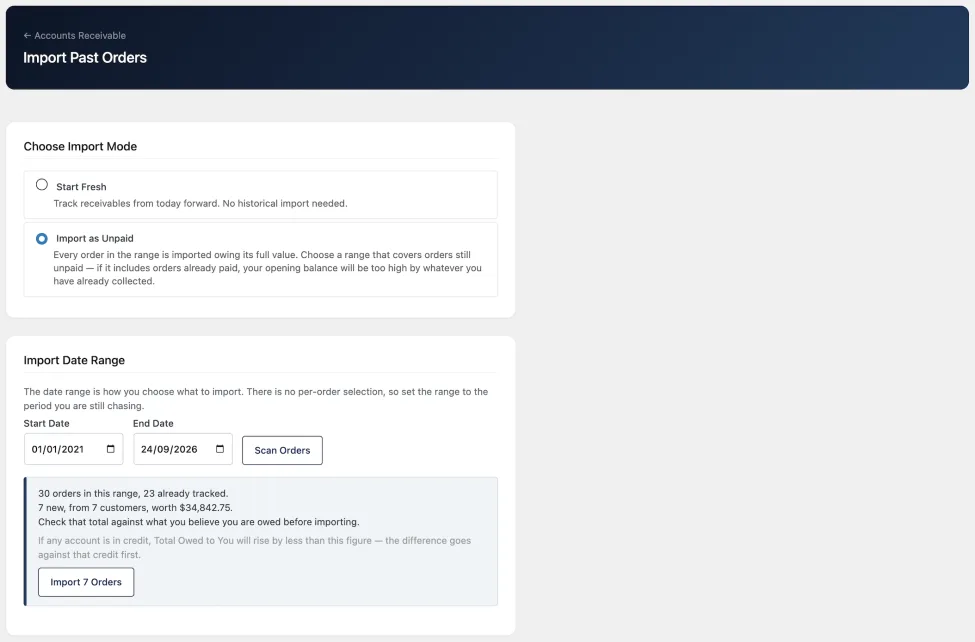
Two Modes
Open the Import tab.
- Start Fresh: imports nothing. New orders on your chosen payment methods are tracked from now on.
- Import as Unpaid: brings a date range of existing orders into the ledger as charges.
How to Import
- Choose Import as Unpaid.
- Set the Start Date and End Date. The range defaults to the start of the month three months ago through today.
- Click Scan Orders. The scan reports how many orders are in the range, how many are already tracked, how many are new and from how many customers, what they are worth, and how many cannot be imported.
- Check that total against what you believe you are owed, then click Import. Orders are imported 20 at a time with a progress bar.
What Gets Imported
Orders created within the date range, placed with a payment method currently ticked in settings, and with a status of Processing, Completed or On hold. Each becomes a charge for the order’s full total, dated the order date and tagged Imported. Its due date is the order date plus your current payment terms, so an old order arrives already overdue.
An order that was already refunded imports as its full invoice, plus each refund as its own credit on the day the refund was issued.
Orders already in the ledger are skipped, so running the same range twice does not double anything.
What Importing Cannot Do
- It cannot tell whether an order was paid. Every order is imported owing its full value. Choose a range that covers unpaid orders, and record any payments already received afterwards.
- There is no per-order selection. The date range is the only way to choose what is imported.
- Other statuses are not scanned. Pending payment, cancelled, refunded and failed orders are left out.
- The role filter is not applied. Orders from every customer role are imported.
- Orders in another currency, orders without a customer account and orders with a zero total are not imported. The scan lists each of these separately with a count and leaves them out of its totals.
- A scan expires after an hour. After that, scan again before importing.
The CSV Export
How to Export
Click the download icon (Export Balances) in the dashboard header. If nothing has been recorded yet, no file is produced. You are returned to the dashboard with a notice saying so.
What Is in It
One row per customer with a balance other than zero, largest balance first:
| Column | Contains |
|---|---|
| Customer | Display name |
| Company | Billing company |
| Account email | |
| Balance | A plain number with no currency symbol. Negative when the customer is in credit. |
| Oldest Unpaid | Date of the oldest invoice still owing, in your site’s date format. Empty if none. |
| Currency | The currency code |
After a blank row come three totals, so the file reconciles against the dashboard: Total owed to you, Credits held (as a negative figure) and Net position.
The export is balances only. It does not contain individual charges, payments or the account history. Orders in other currencies are never tracked, so they never appear in it.
Filename
kascado-ar-balances-YYYYMMDD-HHMMSS.csv, with the date and time in UTC.
Spreadsheet Safety
The file is UTF-8 with a byte-order mark, so names with accented characters open correctly. Any HTML in a name or company is stripped. A text cell that begins with =, +, -, @ or a tab is prefixed with an apostrophe, so a spreadsheet shows it as text instead of running it as a formula.