First Setup
What You’ll See After Activation
After activating, navigate to Kascado → Accounts Receivable. Until the first entry is recorded, the page lists three steps instead of figures:
- Choose which payment methods create receivables. If methods are already selected, the step shows a tick and lists them after Currently:.
- Import past orders, or start from today.
- Record payments as the money arrives.
Payment Methods Selected on Activation
On activation, the plugin looks through your WooCommerce payment methods and pre-selects the ones that look like pay-later methods:
- Methods with the ID
bacs,chequeorcod - Any method whose title contains “invoice”, “bank transfer”, “purchase order” or “pay later”
This is a guess from IDs and titles, so check the result. It only happens if the settings have never been saved. If WooCommerce was not active when you activated the plugin, the selection is made the first time an admin page loads with WooCommerce running.
Import Past Orders or Start From Today
Accounts Receivable only tracks what it is told about. New orders are picked up automatically from the moment you choose payment methods. For orders already in your store, you have two choices:
- Start Fresh: do nothing. Only orders from now on are tracked, so money customers already owe you does not appear in their balances.
- Import as Unpaid: bring in a date range of past orders as charges. Every order in the range is imported owing its full value, so choose a range that covers orders still unpaid. If the range includes orders already paid, your opening balances will be too high by whatever you have already collected.
Imported orders are not checked against the role filter. See Importing Past Orders for everything the importer does and does not do.
Verify It Is Working
Once a qualifying order has been placed or imported, check:
- The dashboard shows figures. The three-step page is replaced by the tiles as soon as the first entry exists.
- The order appears as a charge. Open the customer from Top Customers by Balance or the customer list. The order should be listed under Open invoices with a due date set by your payment terms.
- Guest orders are not there. A charge belongs to a customer account, so orders placed without one are never tracked.
If something looks wrong, see the Troubleshooting guide.
Accessing Settings
The Accounts Receivable settings page is the Settings tab of the Accounts Receivable screen. It has no menu entry of its own.
- Navigate to Kascado → Accounts Receivable.
- Click the Settings tab.
- The settings page opens with three sections: Payment Gateways That Create Receivables, Limit to B2B Customers and Payment Terms.
A fourth section, Kascado Suite Status, appears only when Customer Dashboard, Customer Statements or Accounts Receivable Pro is active. It shows which of them are running and changes no setting.
To return to the dashboard from settings, click the Overview tab.
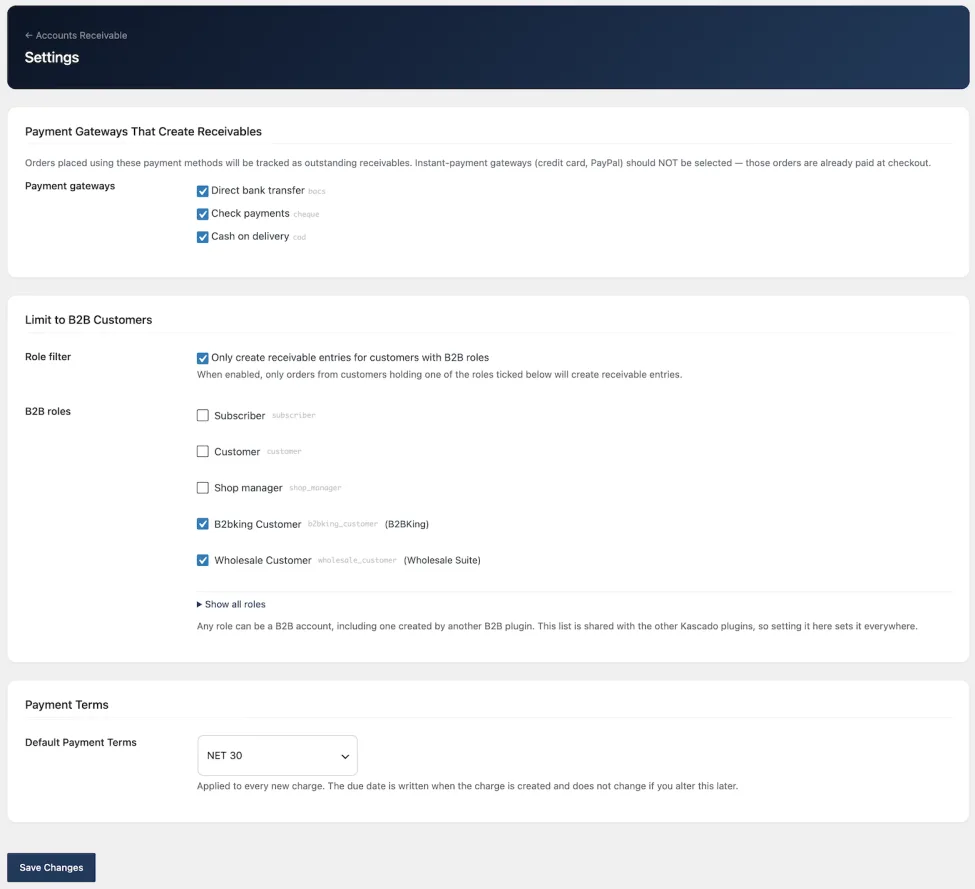
Payment Gateways That Create Receivables
Default: the methods selected on activation
Every payment method registered in WooCommerce is listed with its title and ID. Tick the ones your customers use to pay after the goods go out: bank transfer, cheque, purchase order, cash on delivery, or anything else that defers payment.
Why card and PayPal stay unticked
Orders paid at checkout by card or PayPal are already settled. The plugin does not check whether money arrived, so a ticked instant-payment method would create a charge for money you already have, and the customer would show a balance until you recorded a matching payment.
The plugin never treats order status as payment. Processing or Completed means the order has been handled or shipped, not that the money came in. A charge is settled only by a payment, credit or write-off you record.
Which orders create a charge
An order creates a charge when all of these are true:
- Its payment method is ticked here.
- It belongs to a registered customer account. Guest orders are never charged.
- Its total is greater than zero.
- It is in the store’s base currency.
- It passes the role filter, if the filter is on.
- It has not been charged already.
The charge is created when the order is created, or, if that was missed, the next time its status changes to anything other than Cancelled, Refunded, Failed or trashed. The charge is for the order’s full total, dated the day the order was placed in your store’s timezone.
Changing the selection later
Unticking a method stops new charges for it. Charges already recorded stay where they are.
Ticking a method does not sweep up orders already placed with it. Each of those orders is picked up the next time its status changes, or you can bring them in with the importer.
If WooCommerce has no payment methods set up, this section says so and lists nothing.
Limit to B2B Customers
Role filter
Default: off
When the filter is off, every registered customer who orders with a ticked payment method gets a charge. When it is on, only customers holding one of the roles ticked under B2B roles do.
B2B roles
Every role on your site is listed as a checkbox with its slug. Administrator, Editor, Author and Contributor sit behind Show all roles unless one of them is already ticked. Every other role, including WooCommerce’s customer role, is listed first.
Any role can be a B2B role. Three role slugs are labelled with the plugin that usually creates them, for recognition only: wholesale_customer (Wholesale Suite), b2bking_customer (B2BKing) and wholesalex_customer (WholesaleX). The plugin does not detect B2B customers and ticks nothing for you. The roles you tick are the whole list.
The list is shared with the other Kascado plugins, so setting it here sets it everywhere.
Saving the filter with no roles ticked
A filter with no roles cannot be saved. If you turn it on without ticking a role, the save shows an error and the filter stays off. If an older install has the filter on and the list empty, the filter is ignored, every customer is tracked, and the settings page shows a warning saying so.
What the filter does not cover
- Imports: the importer brings in every qualifying order in the date range, whatever the customer’s role.
- Role changes: changing a customer’s role later does not add or remove charges already recorded. It only affects their orders from then on.
Payment Terms
Default Payment Terms
Default: NET 30
Available terms: Due on Receipt, NET 7, NET 10, NET 14, NET 15, NET 21, NET 30, NET 45, NET 60, NET 90 and NET 120.
Every new charge gets a due date: the order date plus the number of days in your terms. With Due on Receipt, the due date is the order date itself. A charge becomes overdue once its due date is before today, in your store’s timezone, and part of it is still unpaid.
Changing terms later
A due date is written when the charge is created and does not change afterwards. New terms apply to new charges only. Charges already on the ledger keep the due date they were given.
When an order edit raises an order’s total, the extra charge for the difference carries the original charge’s due date.
One term for every customer
The free plugin applies the store-wide term to every customer. It has no per-customer terms. Each customer’s account screen shows the term in force.
Admin Notices
These notices appear on Accounts Receivable’s own screens and nowhere else in your admin.
Orders in another currency
The plugin tracks the store’s base currency only. Orders placed in another currency are left out rather than converted. When any of your 500 most recent orders on a ticked payment method were placed by a registered customer in another currency, a notice says how many. The count refreshes within an hour, and straight away when you save settings or run an import.
Atomic writes
If the plugin’s tables are not on the InnoDB storage engine and could not be converted, a warning says the server cannot guarantee atomic writes. Ask your host to enable InnoDB.
Currency decimal places changed
Every entry stores the number of decimal places your currency used when it was recorded. If you later change that WooCommerce setting, older entries keep their original precision rather than being re-read, and a notice explains this.
Saving Settings
After making changes, click Save Changes. Payment methods that no longer exist in WooCommerce and roles that no longer exist on the site are dropped when you save. If the role filter could not be turned on because no role was ticked, an error explains why.